Help Widget & Knowledge Base
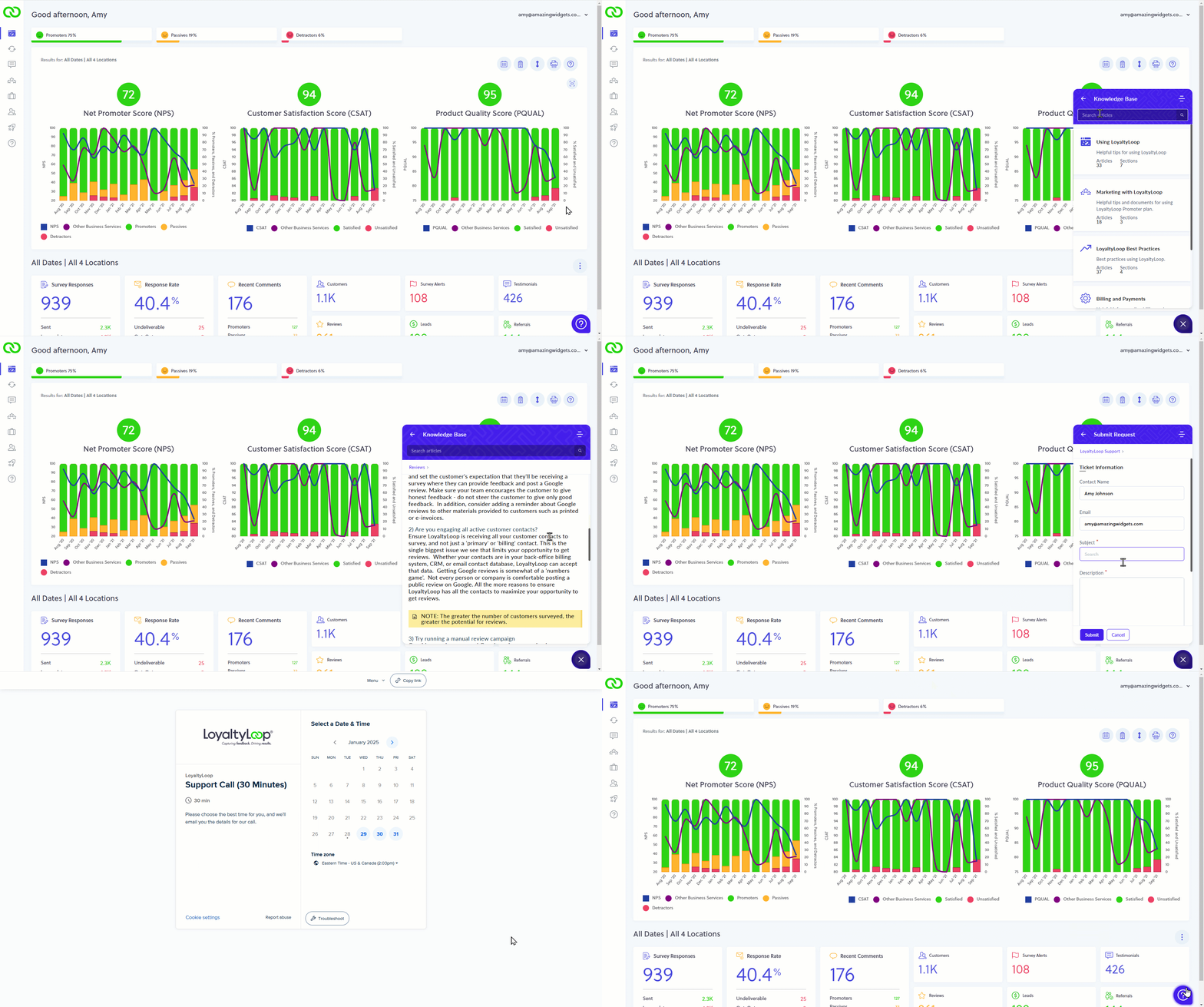
We are pleased to release a great new enhancement to our support tools and application, making it even easier to get the help you need when you need it.
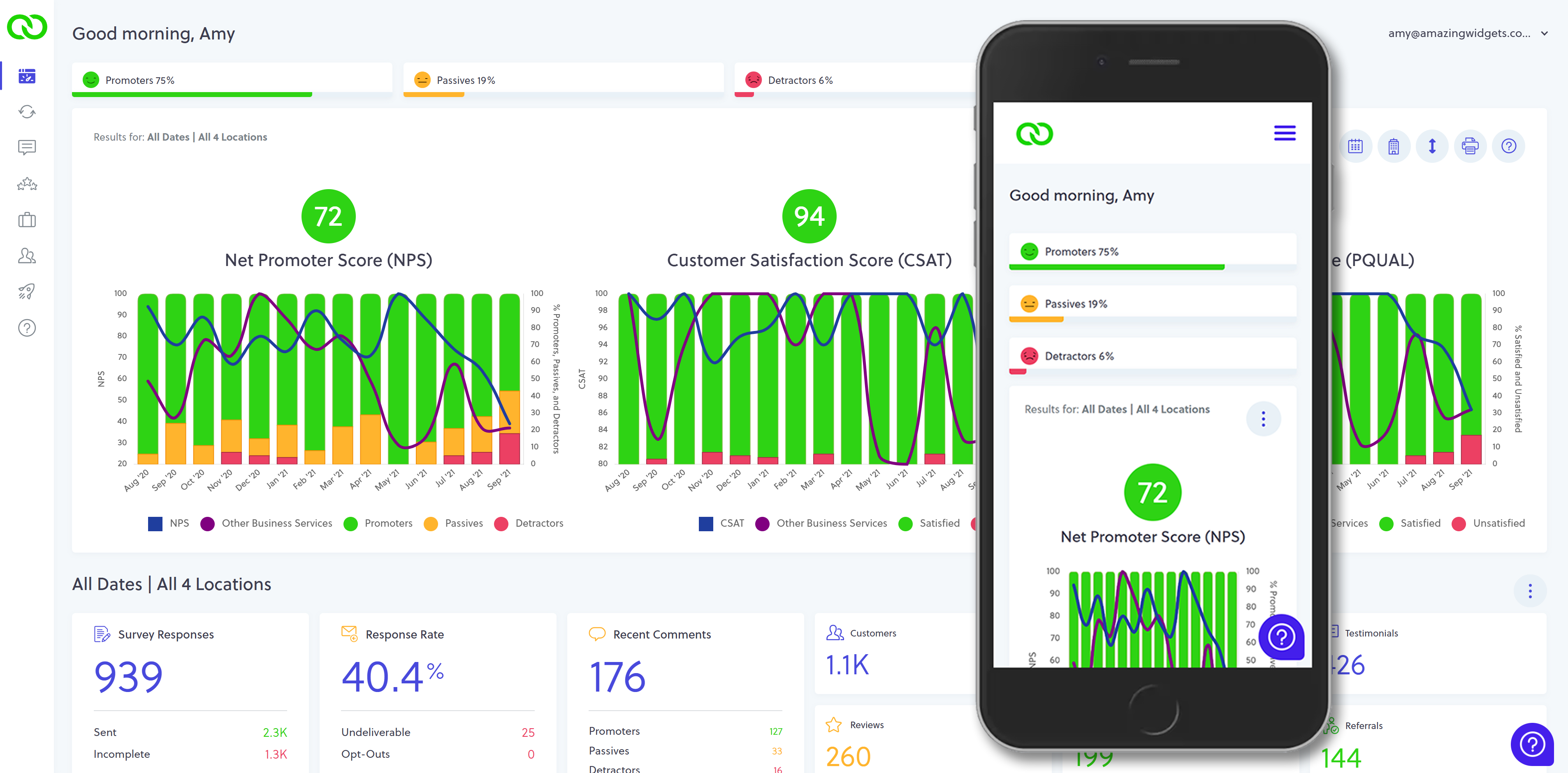
By the end of the month, when you sign in to LoyaltyLoop, notice the omnipresent Help Widget icon in the bottom right corner of the screen. This new feature, visible on desktop and mobile, puts the power of LoyaltyLoop support at your fingers.
Here are some FAQs that explain this great new feature:
How does the Help Widget work?
Whether on your computer or phone, simply click the Help icon to open the Help Widget, revealing access to all your support tools. Click the icon again (or the X in the upper right corner on mobile), and the Help Widget closes. In the top right of the widget you'll find a "hamburger" icon with helpful shortcuts taking you directly back to the widget home page, and other sections.
What support tools are available in the Help Widget?
You will find a new searchable Knowledge Base, loaded with articles and videos to answer your questions. You can also submit a Ticket, with your username details pre-populated, and can even schedule a support session.
What happens to the original help links?
The original help links are still where they used to be. Now, clicking the Help link on the left main menu, and on the username drop-down menu, opens the Help Widget.
Let's look at each section.
1. KBase
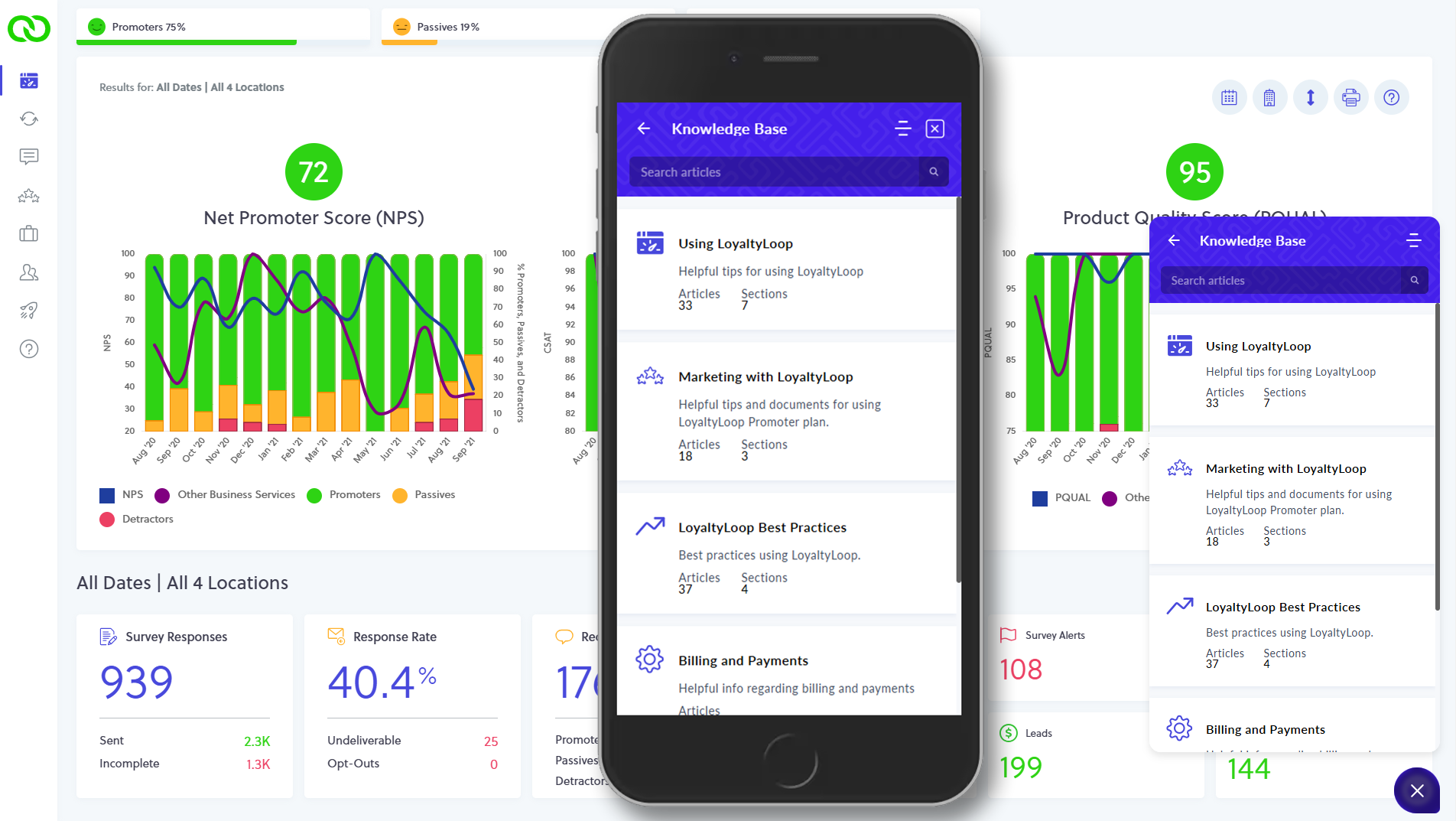
When you enter the Knowledge Base, you'll find articles organized by category, making it easy to browse and find the answer to your question.
But you'll also find a search bar. Start typing a word or phrase, and you'll find suggested articles that might be helpful. You will also find an entire section with all our videos.
2. Tickets
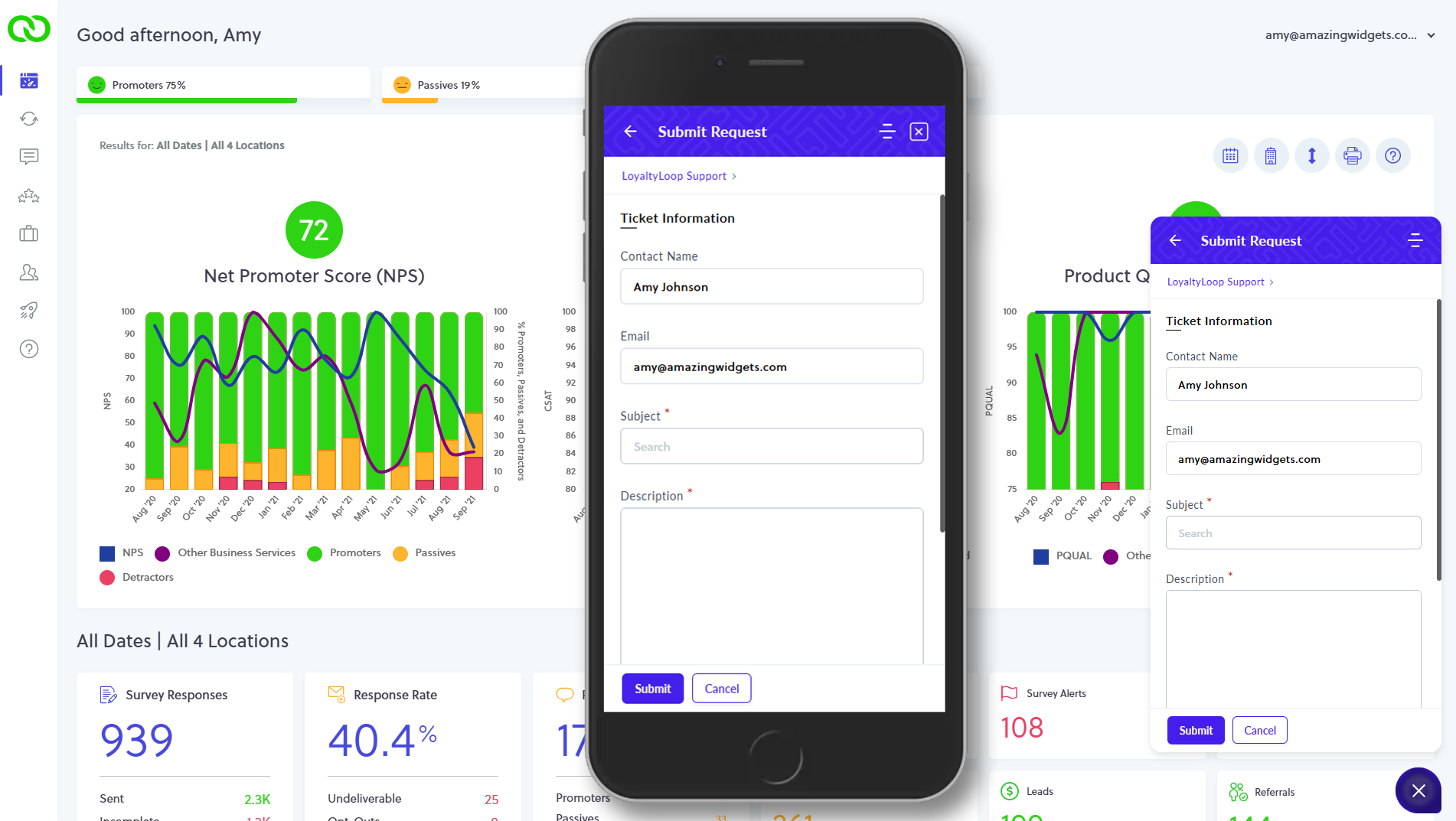
When you need to ask our support team a question, you can generate a ticket from the Help Widget. Simply click "Submit a Ticket" from the home screen.
Your username details are already entered. Compose your ticket and click "Submit".
3. Sessions
Book a Zoom session with our Support Team. From the Help Widget home page, click "Book a Session" and you'll be able to pick the best day and time for your schedule. All of our other support contact details can be found in this section, too.
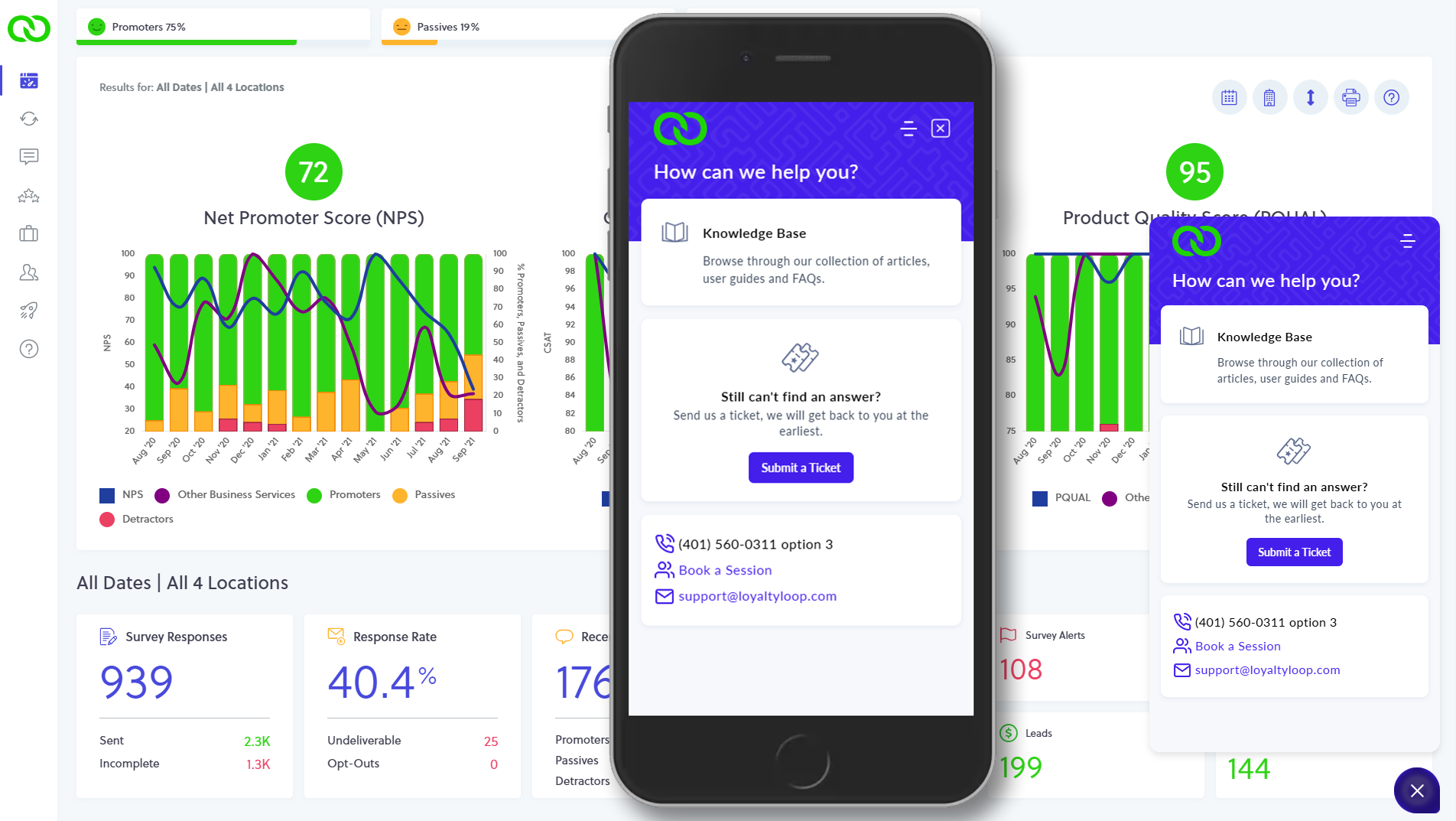
Here's a short little animated GIF showing your the new Help Widget in action