Engage customers with SMS
Engage your customers the way they prefer
Delivering outstanding customer experiences touches all aspects of your business, including how you communicate. Not every customer prefers the same communication channel. Some may prefer email, others may prefer text messages (SMS).
The SMS Add-On allows you to set your customer's communication preference, and LoyaltyLoop will take it from there. Communicating with customers in the way they prefer, can help deliver a better experience for them, and produce better feedback results for you.
How does it work?
When you add SMS to your plan, you'll select a local phone number that will be used to send your feedback and review requests. Just like how you can configure your LoyaltyLoop emails with personalized messages, you can personalize SMS messages too. However, unlike email, each SMS message is limited to 160 characters. You can still send longer messages, but it will be sent as more than one SMS. When your customer clicks the link in the text message, it will open your survey. Since SMS messages are mostly used on mobile devices, when you add SMS we'll ensure your survey is using our mobile-friendly template.
How much does it cost, and how does billing work?
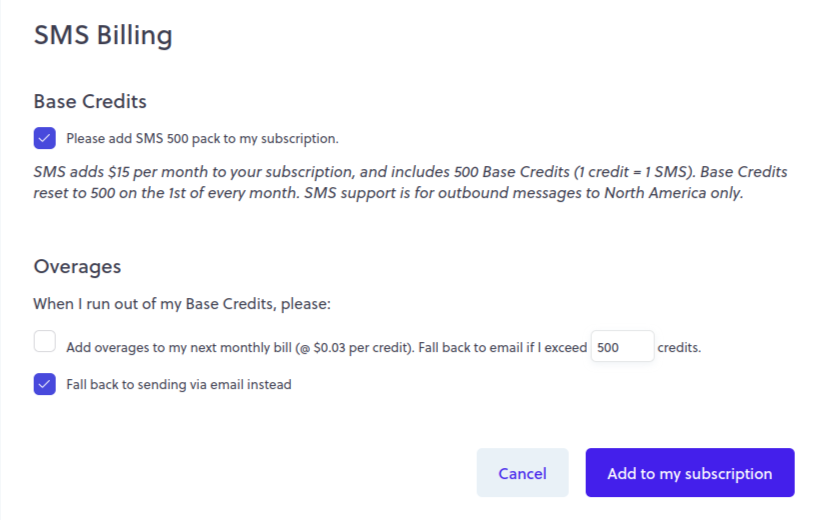
SMS can be added to any LoyaltyLoop plan at only $15 per month, and includes 500 Base Credits per month, where one (1) credit equals one (1) SMS sent. If your message is longer than 1 SMS, it will use multiple credits. On the first of each month your Base Credits reset to 500.
As LoyaltyLoop engages customers for feedback and reviews, any customer you set to receive SMS will be engaged via SMS. Remember, there are multiple messages that can be sent to a single customer during a single survey launch sequence. For example, a customer would be sent your initial request for feedback (1 credit), but if you have the 7-day reminder turned on and this customer did not respond to the first SMS survey message, the system will automatically send the reminder SMS (1 credit). If you have the Review Reminder turned on, this customer may be sent that SMS message too (1 credit). Your Base Credit balance decreases with each SMS sent.

Photo by Eugene Chystiakov on Unsplash
What happens if I run out of credits during the month?
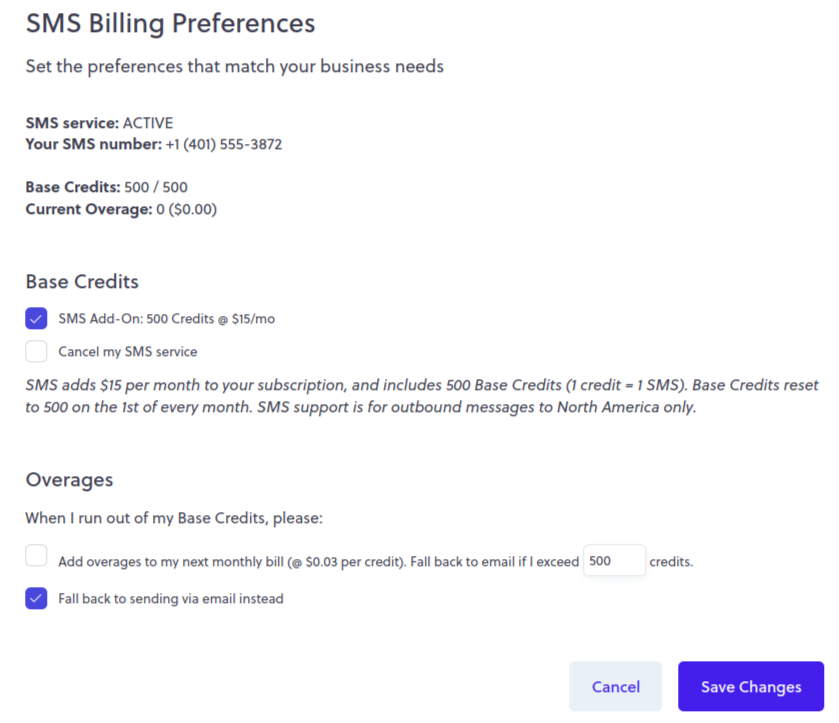
Don't worry. In your SMS Settings you can choose to either have LoyaltyLoop revert to sending email when you run out of Base Credits, or you can opt to let LoyaltyLoop continue sending SMS. If you exceed your Base Credits but opted to keep sending SMS, you will generate an SMS Overage.
Overages are billed at the same per-SMS rate as your Base Credit plan, and are automatically added to your next month's bill. Want to set an Overage upper limit? No problem. In your SMS Preferences, you can set an Overage upper limit, after which the system will automatically revert to sending via email.
Watch our video explaining how to enable and use the SMS Add-On. Or follow the steps below.
How to enable the SMS Add-On?
Step 1
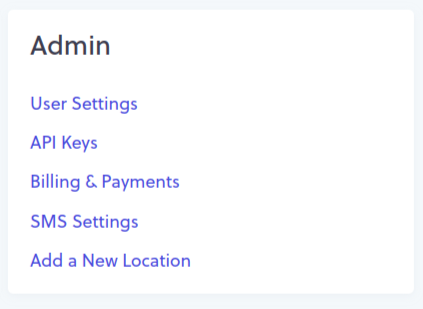
Sign in as an Admin User. Click your email address in the upper-right and then click Settings. In the Admin grouping, click SMS settings.
Step 2
Choose how LoyaltyLoop should handle any SMS Overages. Then click the button "Add to my subscription".
Step 3
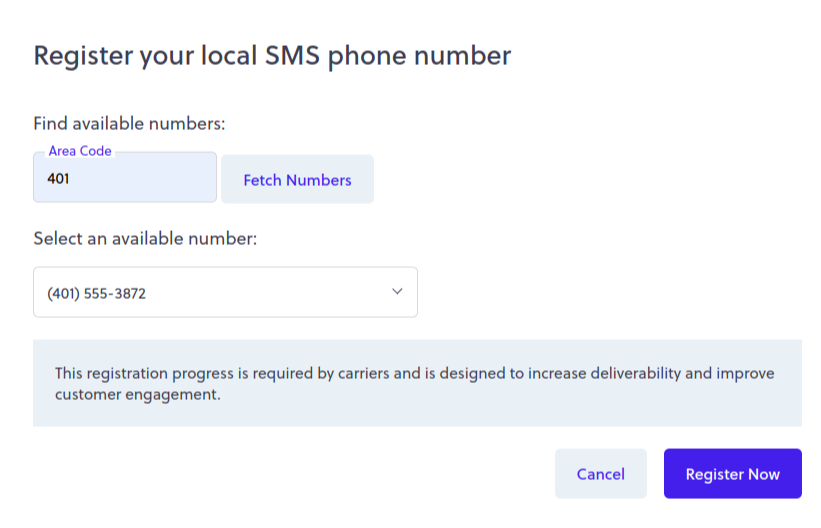
Choose a phone number from which your text messages will be sent. Consider choosing an area code that matches your company phone number. Once you've chosen a number, click "Register Now".
Step 4
Confirm all your chosen settings, and click "Save Changes". If you change your mind, check the "Cancel my SMS service" and then "Save Changes".
How to I configure my text messages?
Step 1
Once SMS is added to your plan, go to Settings and review your outbound messages: Survey Invitation, Survey Reminder, and Review Reminder (Promoter plan only).
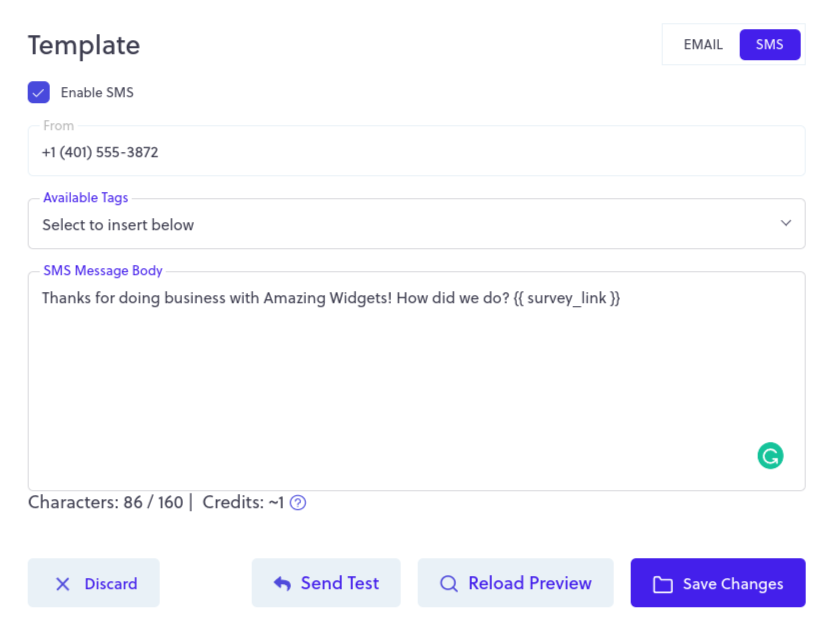
In the upper-right of the edit window, you'll see a toggle switch allowing you to edit either your email or SMS message. Choose SMS, and edut the text message to your liking. Take note of the character count at the bottom. If your message exceeds the limit of 1 text message, LoyaltyLoop will break the message into multiple text messages. Remember, each text message uses 1 SMS credit.
Step 2
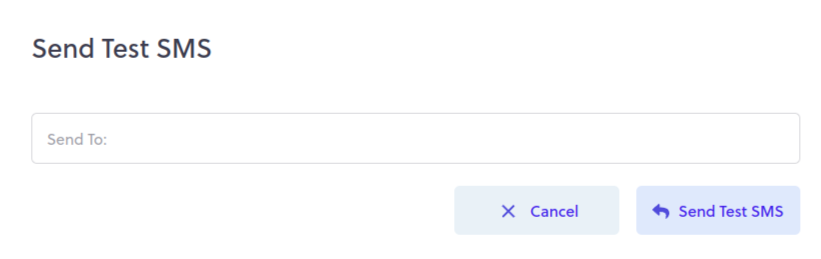
Send yourself a test SMS to make sure your message appears correctly. At the bottom of the edit screen, click on the "Send Test" button, and then enter your cell phone number. Look at the text message to ensure it's how you want it to appear.
Step 3
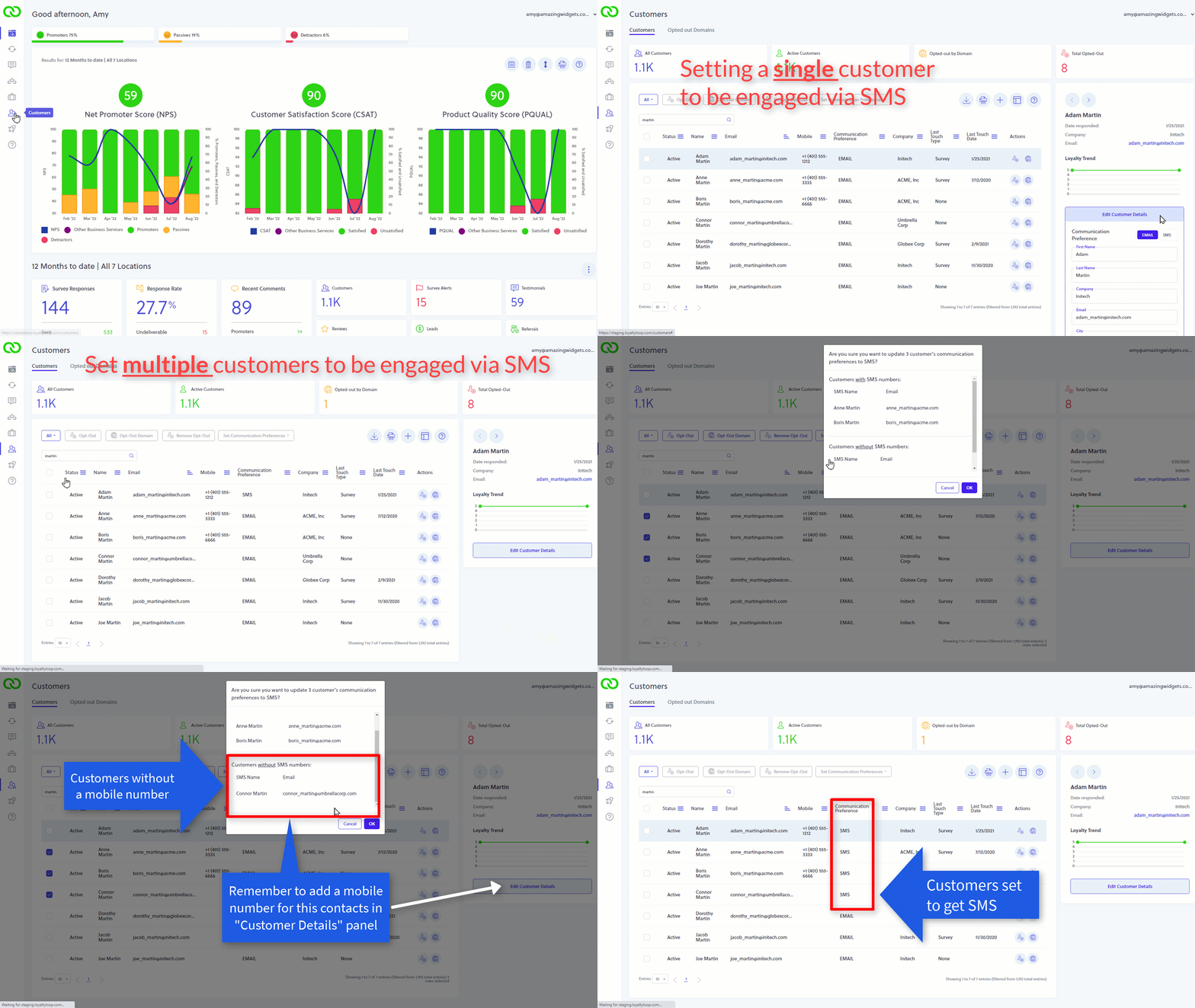
The final step is to tell LoyaltyLoop which customers prefer SMS. By default, all customers are set to receive email even if SMS sending is enabled. Make sure you enter a correctly formatted mobile number for customers, then set the customer's preference to SMS. First, click Customers from the left main menu.
Single customer
- Click the row of the customer in question
- Click "Edit Customer Details"
- Click SMS and confirm their mobile number, then click Save Changes
Multiple customers
- Click the checkbox next to one or more customers
- Click on the pull-down menu that reads, "Set Communication Preferences" and choose SMS
- Notice the Communication Preference column