New hover-over data adds details and convenience

Photo by Joel Herzog on Unsplash
You'll find a new hover-over feature throughout LoyaltyLoop that adds convenience when viewing certain data elements in the application. The phrase "hover-over" means moving your mouse cursor over a particular data element.
You'll find this new capability in several places throughout the application, including Feedback by Customer, Opportunities, and Customers. There are several use-cases for this new hover-over feature.
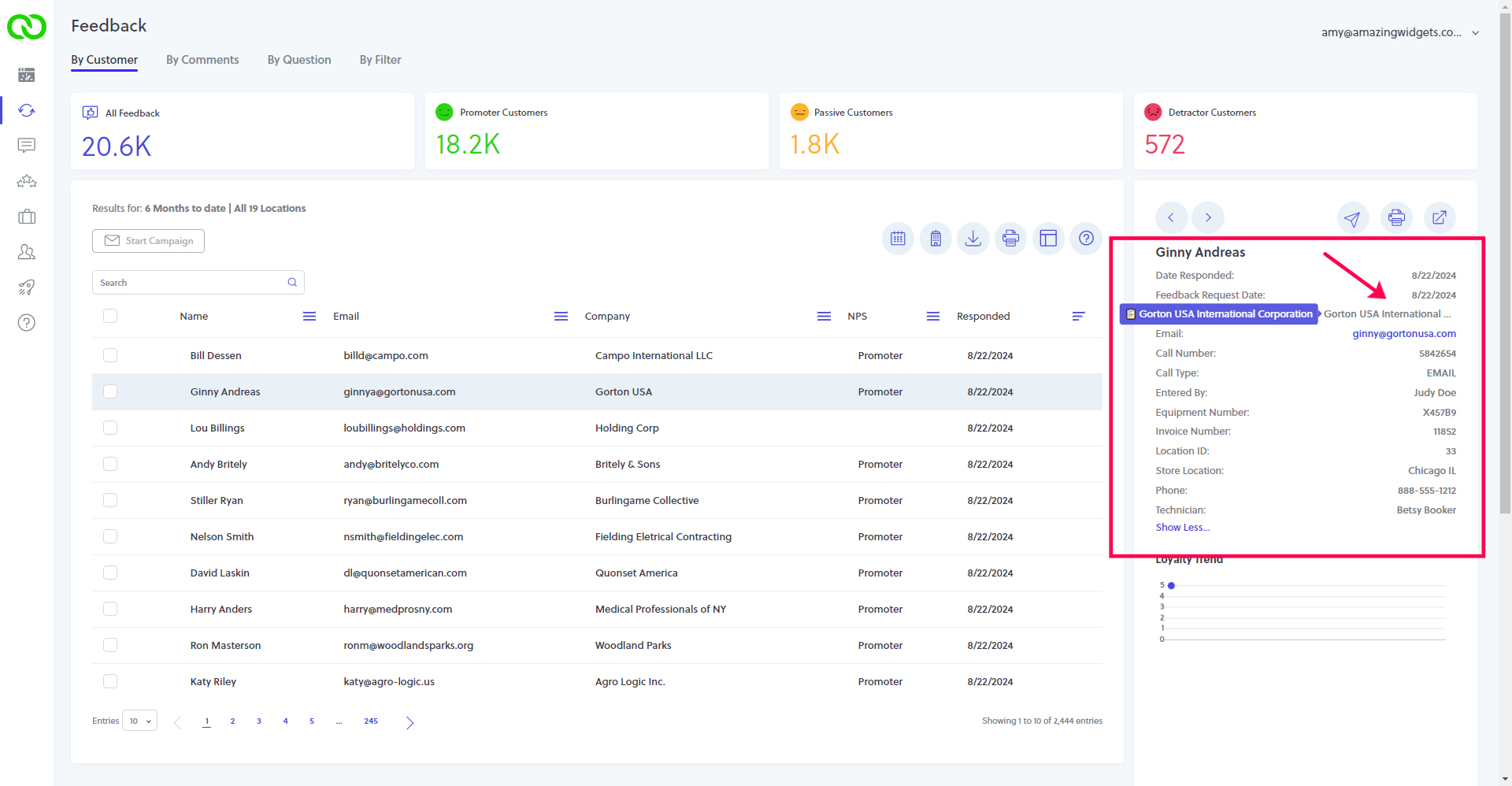
Hover-Over Long Data
Sometimes data is too long to display in it's entirety in the space provided in the application. This usually happens with long strings, or long comma-separated text. When you see ellipses on a data element, that means the data is too long to display, but you can now hover-over that element to view the entire value.
Hover-Over Opt-Outs
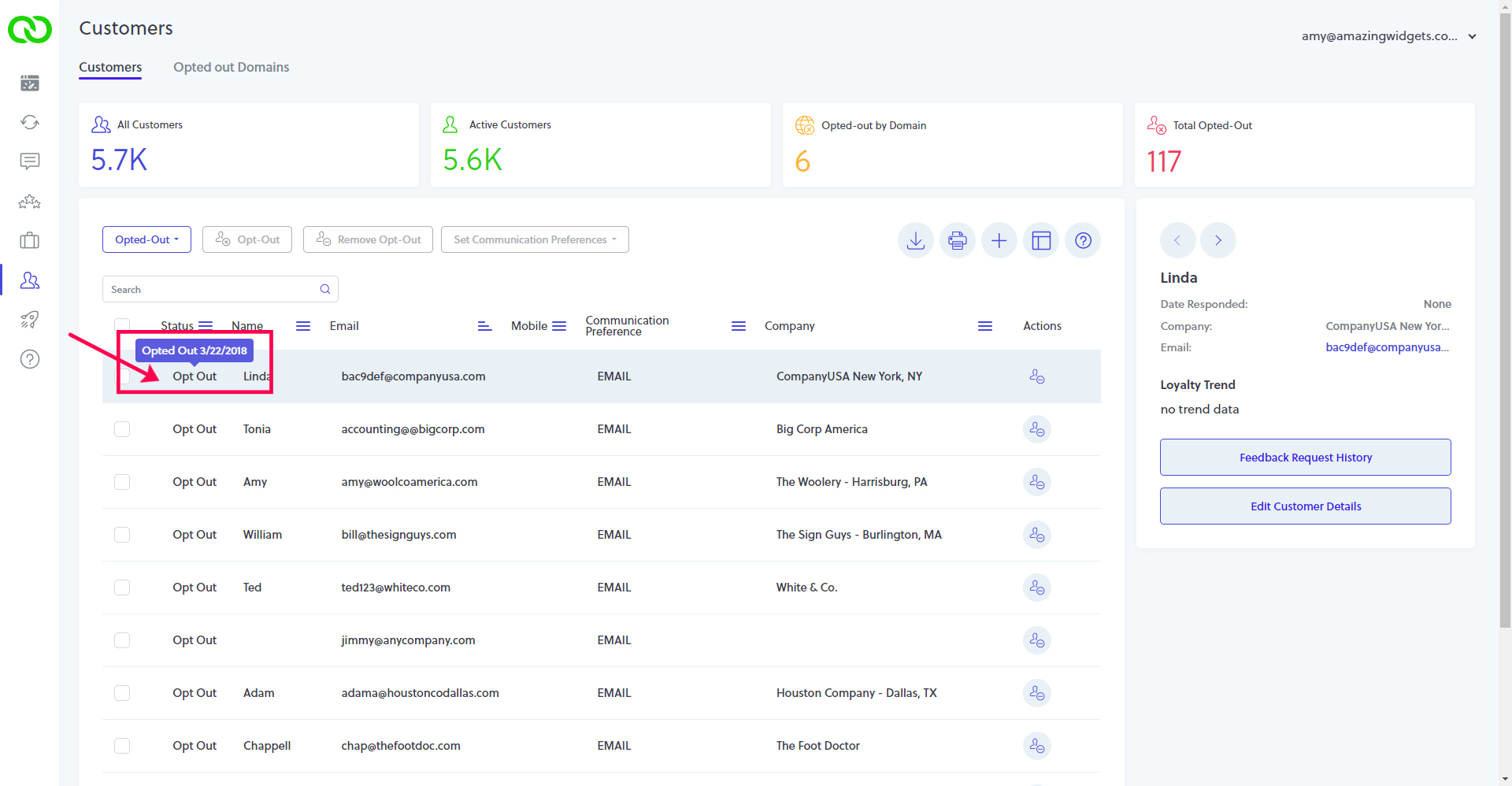
From your Customer view you can set a filter to view all customers who you (or they) have opted out of your survey. Now, by hovering-over the "Opt Out" label, you'll see the date when this opt-out was added. Also, when exporting your opt-outs, you'll also see a column with the date the opt-out was added.
Hover-Over Data to Copy
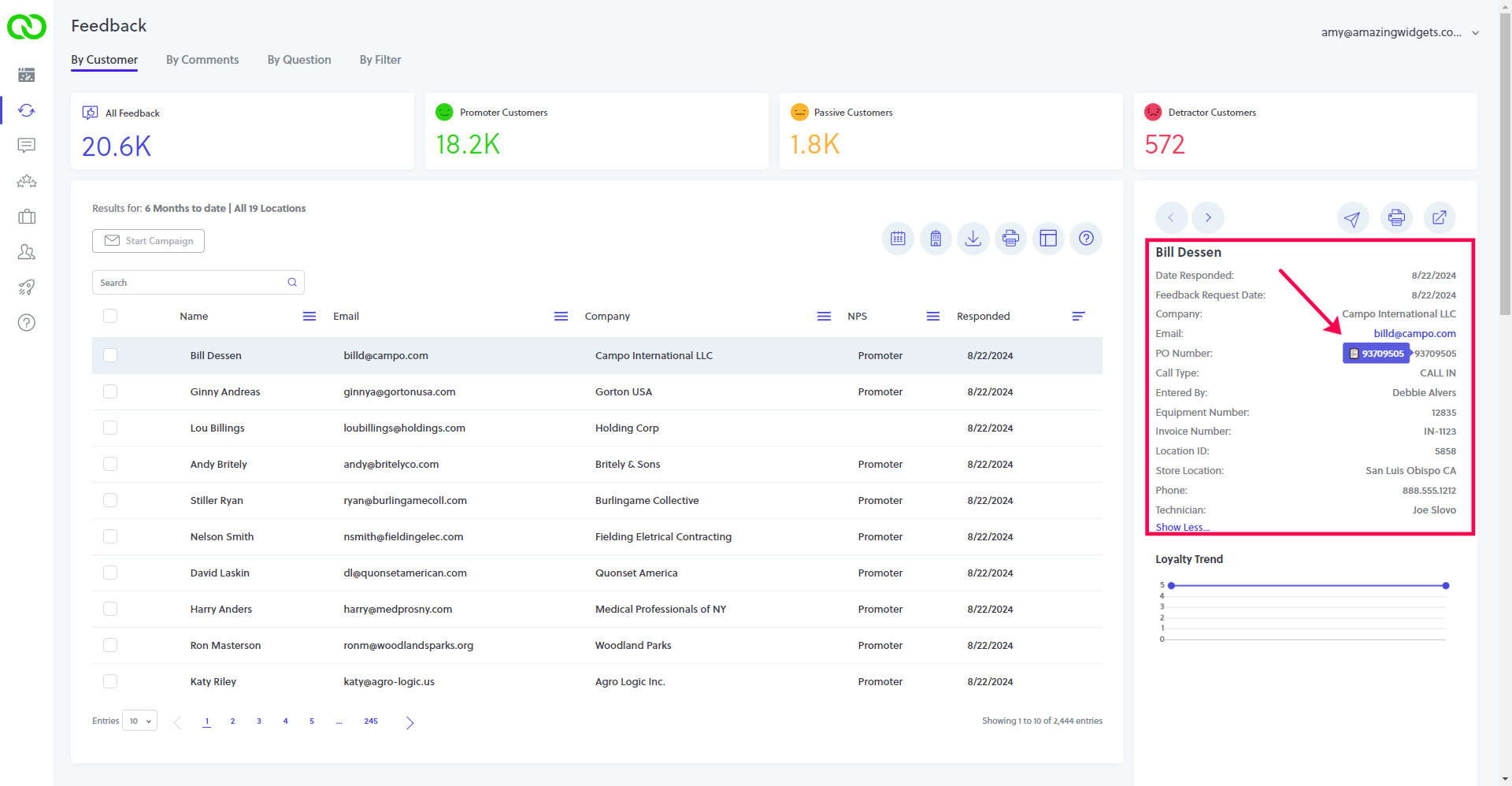
From your Feedback by Customer view, when you select a customer's row in the table, you see that customer's detailed survey response on the right. That detail panel includes various data elements that you included with your survey launch data. This data is part of the feedback record to help you understand the nature of the customer's experience and significance of their feedback. You might include helpful data elements like the customer's phone number, account number, or PO number.
When you hover-over any of these data elements, you will see a tip showing the value and clipboard icon. Simply click your mouse while hovering-over, and that element is copied to your clipboard. This is particularly handy for easily capturing a customer's phone number or PO number to paste in follow-up emails, or other internal feedback documentation.