Update: How to Opt-Out by Domain
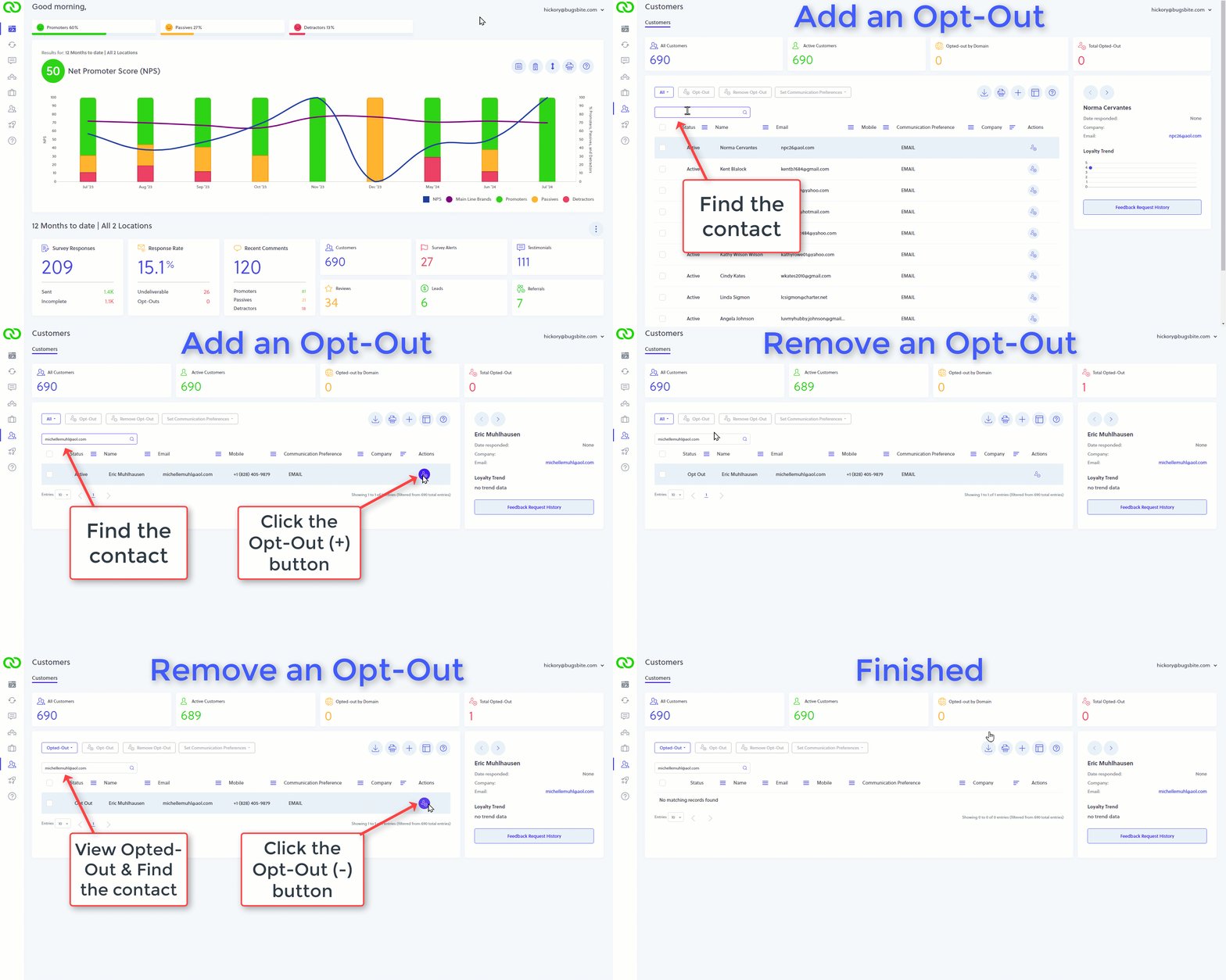
Reminder: How to Opt-Out a Single Contact
Sometimes, we think we're making things easier, but we're not. We recently discovered a few customers had opted out all customers from popular domains like @gmail.com. This seemed odd to us, so we contacted the customers and discovered they had done that inadvertently.
In the past, the Customer table had 2 buttons placed side-by-side next to each customer row. One button would allow you to opt-out just that customer, and the other button would allow you to opt-out the entire domain. These users mistakenly clicked the opt-out domain button, removing large numbers of potential customers from their survey.
To avoid other customers making the same mistake, we decided it was a poor choice on our part putting those buttons side-by-side. We have now removed the opt-out domain button from the Customer table.
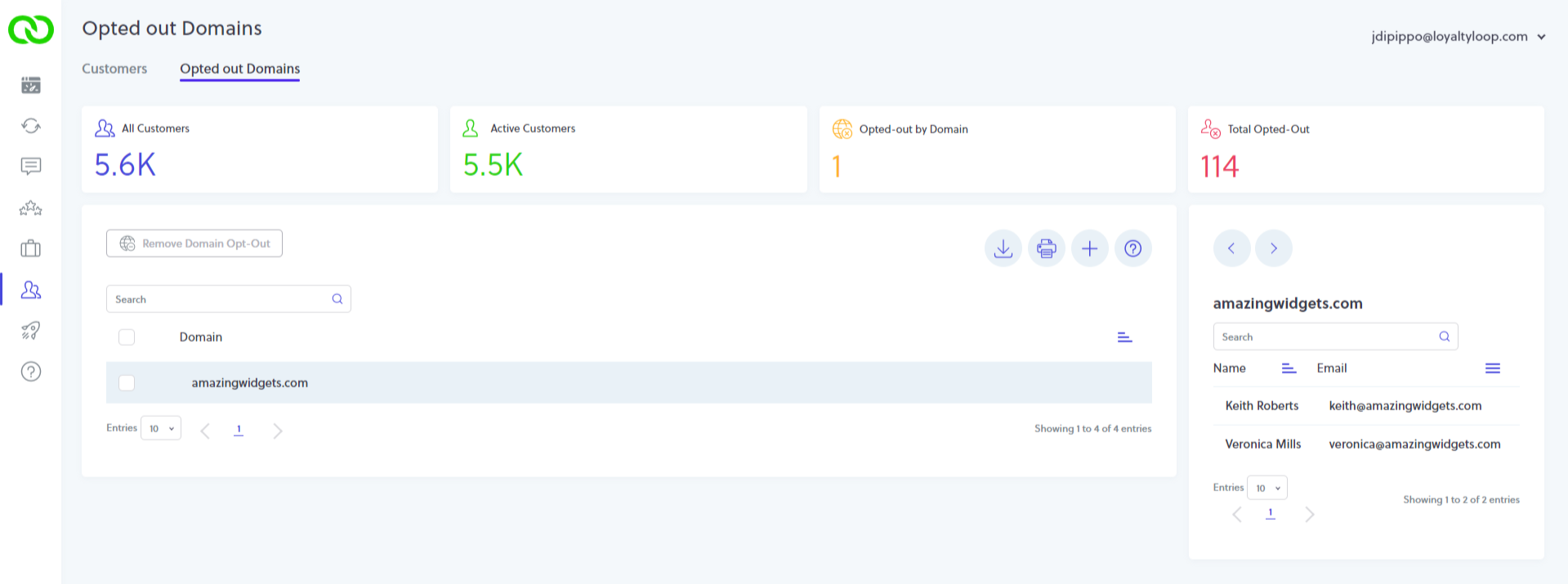
Following this update, in order to opt-out an entire email domain:
- Click Customers from the left main menu
- Click Opted out Domains from the top menu (here you'll see any existing opted-out domains)
- Click the plus (+) button
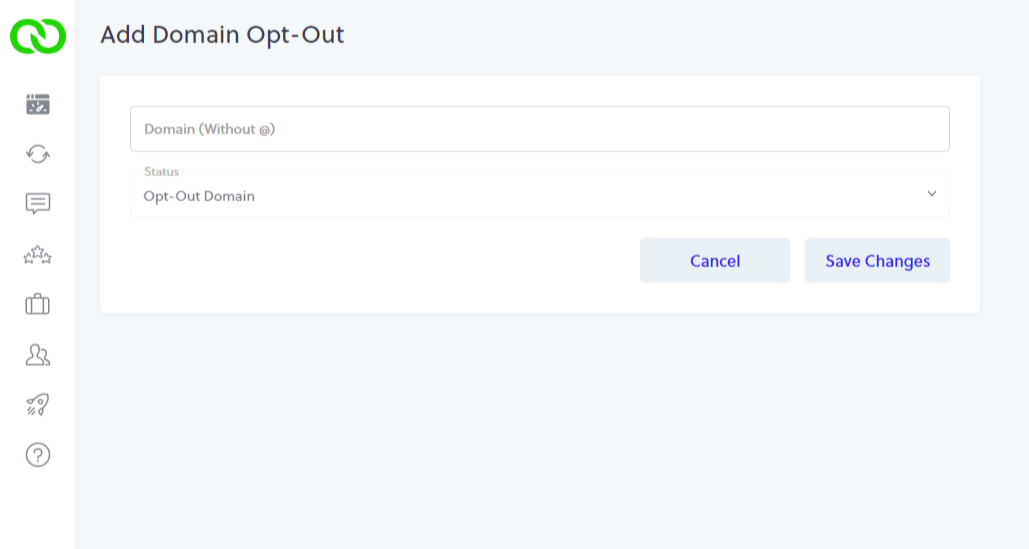
- Enter the domain you wish to opt-out from your LoyaltyLoop service
- Click Save Changes.
This entire section has always been available, but it is now the only way to opt-out by domain.
Reminder: How to Opt-Out a Single Contact
Following this update, the process of opting-out a single contact remains the same.
- Click Customers from the left main menu
- Find the Customer you wish to Opt-Out
- Click the Opt-Out (+) button
- Done
To remove an Opt-Out, follow the same steps but this time you'll click the Opt-Out (-) button.