
Reduce mistakes with visual cues
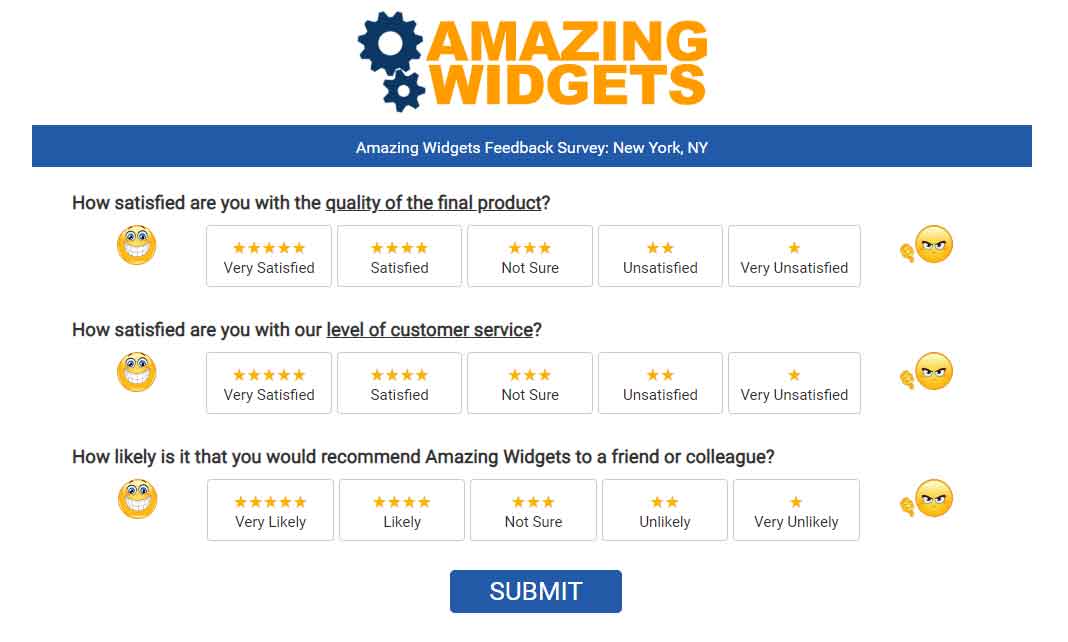
If you haven't had your survey updated in a while, you might consider adding visual cues to the choices to freshen up the look and feel, which also aids your customers in answering.
Start off by looking at your existing survey. Go to Settings, (then click on a location if necessary) and then on Survey Preview in the "Survey" group. If you don't see any visual cues, or it looks a little dated, it might be time to freshen it up.
Don't worry. Our team will make all the changes for you. We offer a number of options for visual cues including stars, emojis, labels and more. We will also update your survey to the mobile-friendly design.
While you don't want your survey to become too busy in appearance, here are a few examples to help you visualize what your survey questions could look like.
A simple enhancement is adding emojis to the ends of the scale. This simple update helps customers quickly identify the direction of the choices, further aiding them from making a mistake. This works great with any scale, and in particular on the traditional 11-point (0 to 10) scale for NPS® questions.

Or, you might prefer to add stars to the choices, or even both stars and emojis. The stars work particularly nicely with the 5-phase choices, as shown below. Employing the 5-star cues is also aligned with most review platforms, and hence has a consistent feel with those platforms.

Whatever visual cues you prefer, our team will make the changes for you. All you need to do is reach out to our support team at support@loyaltyloop.com or 888-552-5667 option 3.